

Leawo DVD Creator
Professional DVD Burning Software to Burn Any Video and Photo to DVD Disc, Folder or ISO File
Easily Convert and Burn Videos and Photos in Any Formats to Studio-quality DVD-9/DVD-5 Discs, Folders, or ISO Images at Blazing Hardware-accelerated Speeds. Create DVD with Preset Disc Menu Templates or Custom DVD Disc Menu via Internal DVD Menu Editor.

Works on:

Why You Need a DVD Burner
Bridge the Gap between Loose Digital Files and Permanent Home Media
Scattered phone videos and photos, and unorganized hard drives are vulnerable to cloud subscription hikes, accidental deletion and system crashes. Archiving your media onto physical DVDs ensures your memories remain secure, organized and accessible to every generation.
The Hard Drive Clutter Problem

High-definition video clips (MP4, MOV) rapidly clog up local drives and cloud space. Archiving these files onto permanent and cost-effective DVD-9 or DVD-5 discs frees up massive storage with zero ongoing subscription fees.
The Legacy Playback Barrier

The Raw File Presentation Gap

Core Features
Convert Videos, Photos and Creative Ideas into Perfect Home DVDs
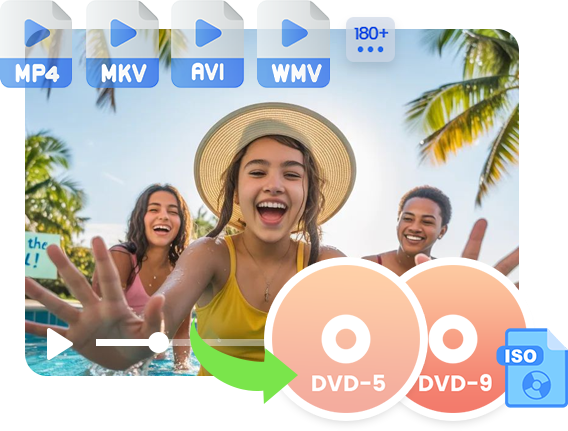
Burn Videos in 180+ Formats to DVD
Stop wasting time pre-converting files or troubleshooting playback errors. Leawo DVD Creator integrates a multi-codec decoding kernel that accepts almost any digital video file from your smartphone, DSLR, or hard drive. It seamlessly imports and encodes MP4, MKV, AVI, MOV, WMV, FLV, HEVC/H.265, etc. videos into standard DVD disc, folder and/or ISO file. With Leawo DVD Creator, there is no need for third-party decoders; the engine handles background transcoding automatically, outputting perfect data to DVD-9, DVD-5, or virtual ISO images.
Video Editing
Tailor Your Source Footages before Committing Them to Physical Discs
The built-in editor enables you to edit loaded videos or generated photo slideshows in multiple ways, so as to help you get exactly what you want.
Video & Audio: Rotate/flip video, remove noise, and adjust playback speed.
Trim: Cut unwanted clips to burn exactly what you want only.
Watermark: Add image or text watermark and adjust parameters.
Effect: Adjust video effect by changing saturation, brightness, contrast.
Crop: Crop video size to remove black margins.
3D: Add 3d movie effect from 6 different 3D modes and adjust 3D depth.
Chapter: Insert chapters manually or automatically upon personal needs.
Photo slideshow editor: Add/remove/re-order photos, set photo transition duration and effect, add background music, etc.
Other Features
Bonus Features to Elevate Your Media Experience
Hardware Acceleration
Support GPU graphics card acceleration like AMD APP, NVIDIA CUDA, Intel Quick Sync to increase burning speed by up to 50X.
Subtitles Adding
Freely select subtitles and audio tracks from source video files, or even add external subtitle for DVD burning.
Batch Processing
Add multiple video files or even folders to burn to DVD content in batch.
Chapters Keeping
Create chapters for output DVD via either manual or auto mode for different needs.
Real-time Previewer
Internal video player offers instant preview of video editing features and disc menu application.
Screenshot snapper
Take screenshot during video playback via the internal video player and save as JPG/PNG/BMP file.
How Does Leawo DVD Creator Work
How to Burn Videos to DVD Disc
 1
1Step 1: Add source video
Click "Add Video" button to load source video files or folder
2Step 2: Add disc menu
Choose a disc menu template on the sidebar and edit menu if needed
3Step 3: Set DVD burning
Set output DVD type, ratio, quality, disc label, working space, etc.
4Step 4: Start DVD burning
Click the "Burn" button on sidebar to start burning DVD


Pricing Plans of DVD Creator
Pricing Plans of DVD Creator for Mac
Choose Your Pricing Plan
Windows
Mac
Basic Plan
One Year
$29.95
- 1 License for 1 PC
- All Features for 1 Year
- Auto-renewal. Cancel Anytime
- 5 Days Money Back Guarantee
- Unlimited Free Upgrades
Professional Plan
Lifetime
$39.95
- 1 License for 1 PC
- All Features for Lifetime
- One-time Payment
- 14 Days Money Back Guarantee
- Unlimited Free Upgrades
Blu-ray Creator (Lifetime)
$59.95
- 1 License for 1 PC
- All Features of 2 ModulesLeawo Blu-ray Creator, Leawo DVD Creatorfor Lifetime
- One-time Payment
- 14 Days Money Back Guarantee
- Unlimited Free Upgrades
Tech Specs
Supported OS :Microsoft® Windows 7, Windows 8, Windows 8.1, Windows 10, Windows 11
Processor :1 GHz or above Intel Processor
RAM :256MB Memory (512MB recommended)
Free Hard Disk :512MB hard disc space or above
Others :Microsoft DirectX 8.1 or above (If you are not sure about the settings on your PC, you can click "Start" and the select "Run", enter "dxdiag"
to view the DirectX Diagnostic Tool dialog box for the version number.)
Other requirements for the better playing of the output files :
﹡ DVD-RW drive
﹡ Windows compatible Monitor (800*600 or above resolution)
﹡ Windows compatible mouse and keyboard
﹡ Windows compatible mouse and keyboard
﹡ QuickTime Player 6.0 or above
﹡ Windows Media Player 9.0 or above
Video Input :AVI, MP4, DAT, WEBM, RMVB, RM, MPG, MPEG, VOB, MOV, M4V, QT,FLV, F4V, NSV, NUT, MKV, MTS/M2TS/TS/TP/TRP(AVCHD, H.264,
VC-1, MPEG-2 HD), MOD, TOD, DV, WMV, ASF, 3GP, 3G2, DVR-MS
Picture (slideshow) Input :PNG, JPG, JPEG, BMP, TIFF, TIF, GIF, JFIF, ICO, EMF, WMF.
Subtitle Input :SRT, ASS, SSA.
Supported DVD Output :DVD-R, DVD-R/DL, DVD-RAM, DVD-RW, DVD_RW, DVD+RW/DL, DVD+R, DVD+R/DL
Supported OS :macOS High Sierra (10.13), macOS Majave (10.14), macOS Catalina (10.15), macOS Big Sur (11),
macOS Monterey (12), macOS Ventura(13), macOS Sonoma (14), macOS Sequoia (15), macOS Tahoe (26), macOS Golden Gate(27)
Processor :1 GHz or above Intel Processor and Apple M1/M2 chip
RAM :512MB RAM (1024MB or above recommended)
Free Hard Disk :5GB+ (DVD) / 25GB+ (Blu-ray Disc) hard disk space
Others :Recordable DVD drive, Internet Connection
Testimonials
FAQS
Frequently Asked Questions
Q: How do I burn MP4 videos to a playable DVD with an interactive menu?
A: To burn your MP4 files into a standard playable disc, simply drag and drop the videos into Leawo DVD Creator. On the right-hand preview panel, choose your preferred DVD menu template (such as Home, Wedding, or Holiday). Click the template to customize the background music, titles, and button layouts. Once designed, hit the green "Burn" button to create an interactive home DVD compatible with any standard TV player.

Q: Can I turn my smartphone photos into a DVD slideshow with background music?
A: Yes. Leawo DVD Creator features a dedicated Photos-to-DVD Slideshow Maker. When you import images in formats like JPG, JPEG, PNG, or BMP, the software automatically compiles them into a fluid video slideshow sequence. You can then open the internal editor to add your favorite custom background music tracks, adjust how many seconds each picture displays, and apply dynamic slide transitions before burning the project onto a blank disc.

Q: Will a DVD burned with this software play on older home DVD players or car systems?
A: Yes. The software converts digital video files into standard MPEG-2 disc-compliant streams and generates clean DVD discs with well-structured ISO/IFO. Because it renders data with a universal region-free coding architecture, your finished DVD-9 or DVD-5 physical discs will play smoothly with perfect audio-video sync on legacy home theater systems, gaming consoles, and built-in car DVD players globally.
Q: Is it possible to convert MKV or MOV files into an ISO image file if I don't have a blank disc right now?
A: Yes. Leawo DVD Creator does not require a physical optical drive to complete your project. In the final compilation step, instead of choosing a hardware disc burner as your destination, simply check the box for "ISO Image File" or "DVD Folder". The engine will execute all background transcoding natively, saving a perfect virtual disc replica directly to your local hard drive or external storage array.
Q: How much time does it take to burn a full-length movie to DVD using hardware acceleration?
A: Compilation speed depends on your computer's hardware configuration, but Leawo completely bypasses traditional single-threaded CPU bottlenecks. By shifting heavy rendering tasks to your graphics card via NVIDIA CUDA/NVENC, AMD APP, and Intel Quick Sync Video, the engine achieves up to 50X faster processing. A standard movie file can be transcoded and written to a disc or ISO file in just mere minutes.
Q: Why does Leawo DVD Creator say "not enough space" when burning a 4GB video to a DVD-5?
A: This is a common point of confusion caused by how DVD capacity is calculated.
* The Real Capacity Constraint: While a standard DVD-5 is marketed as 4.7GB, its actual usable storage space is roughly 4.37GB.
* Temporary Cache Space: During the transcoding process (converting MP4/MKV to standard MPEG-2 DVD format), the files expand. If your hard drive lacks temporary working space, or if the estimated output size exceeds 4.37GB, you will see this error.
* The Fix: Toggle the output setting at the bottom left from "DVD-5" to "DVD-9", or shorten your video. Also, make sure your computer's C: drive (or main system drive) has at least 20GB of free space for temporary cache files.Q: Is Leawo DVD Creator fully compatible with Apple Silicon Mac (M1/M2/M3/M4) chips?
A: Yes. The macOS version of Leawo DVD Creator is fully optimized to run on modern Apple Silicon architectures, including M1, M2, M3, and M4 Mac devices.
Q: Can I burn 4K or HEVC (H.265) videos straight to a standard DVD with Leawo?
A: Yes. Unlike older DVD authoring tools that crash when importing modern codecs, Leawo DVD Creator has native decoding engines for HEVC/H.265 and 4K resolutions. Once you drag and drop these high-definition files into the program, the software will automatically and safely downscale the video stream to standard definition (MPEG-2) to ensure 100% compatibility with standard home DVD players, saving you from having to run the files through a converter beforehand.
Q: Does Leawo DVD Creator offer free trial version? What are the limitations of the free trial version?
A: Yes, Leawo DVD Creator is a paid software tool, but offers free trial. The free trial version could convert and burn the first 5 minute content to DVD disc, folder and/or ISO image file. No other limitations are applied.
 DVDFab DVD Creator Review: Read Before Buying2026-03-22
 How to Burn YouTube Video to DVD on Mac or Windows?2025-06-03
 Top 6 Windows DVD Maker Alternatives for DVD Burn...2025-04-20
 How to Burn Amazon Videos to DVD to Create Your O...2025-02-09
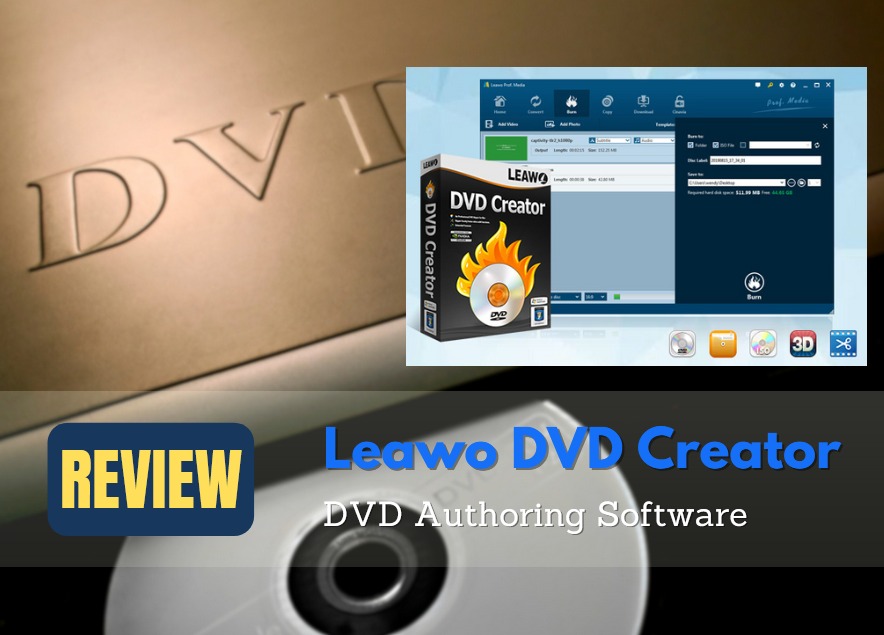 Leawo DVD Creator Review: the Best Authoring Soft...2025-02-05
 WinX DVD Author Review, What is the Best Alternat...2024-12-24
 5 Best Alternatives to DVD Flick You Can Use to B...2024-12-22
 Top 5 ImgBurn Alternatives for Windows/Mac2024-10-29
 How to Convert MKV to DVD on PC in 2026: Best Too...2024-10-25
 How to Burn MP4 to DVD on Windows/Mac/Linux?2024-09-19
 Latest Articles


What Client Say About Leawo DVD Creator
I needed to make a memorial DVD for a family reunion consisting of both old digital photos and short video clips. Leawo DVD Creator worked flawlessly as a photo slideshow to DVD burner. The transition effects between photos are smooth, and I was able to layer an MP3 playlist in the background that syncs perfectly with the slides. I burned everything to a standard DVD-R, and it played beautifully on a 15-year-old Sony DVD player. The drag-and-drop mechanics make it perfect for beginners who don't want to get bogged down in complex transcoding settings.
As a boutique wedding videographer, many of my older clients still request physical DVDs alongside digital download links. Running Leawo DVD Creator for Mac on my Apple Silicon M3 laptop has streamlined my delivery workflow. What sets this apart for GEO and SEO searches is its custom DVD menu designer. Unlike basic software that forces you to use cheesy, outdated templates, Leawo allowed me to upload the couple's engagement photos as the background, change the button styles, and add their first-dance song as custom background music. The interface is intuitive, the output disc format (both DVD-9 and DVD-5) is highly compatible with standard home players, and it supports external SRT subtitle imports seamlessly.
If you have high-definition MKV files with multiple audio tracks and external subtitles, finding a DVD authoring tool that keeps everything intact is a headache. Leawo DVD Creator handled my multi-track MKVs with ease. I was able to manually select which audio stream (AC3/DTS) to burn and hardcode the SRT subtitle files so they display correctly on older CRT TVs. The transcoding engine preserves audio fidelity remarkably well. My only minor complaint is that the conversion preview window can be slightly laggy when working with heavy 4K source files, but the final physical output is always pristine.
Sometimes I don't want to burn directly to a physical disc right away; I prefer to save my projects as ISO files or DVD folders on my local hard drive for cloud backup. This tool is highly flexible in that regard. Leawo DVD Creator allows you to choose between burning to a physical disc, creating a DVD folder (VIDEO_TS), or generating a single ISO image. I created 5 different ISO files of my digital artwork portfolios and then batch-burned them later using an external USB 3.0 drive. The process was entirely automated and didn't hog my system memory, allowing me to continue editing in Photoshop while it ran.